
Server artifacts (also known as FXServer builds) are the actual server binaries that run your FiveM server - the FXServer executable and its runtime. They're updated by the Cfx.re team very frequently, and keeping them reasonably up to date matters: new artifacts bring support for the latest GTA V game builds, new natives, txAdmin updates (txAdmin ships inside the artifact), plus performance, stability and security fixes.
At the same time, you shouldn't blindly grab the newest build the moment it lands. Artifact releases are frequent and largely automated, and it's not unusual for a build to ship with a broken native, a crash on resource restart, or in some cases to fail to build entirely for one platform. Running a known-bad artifact is one of the most common causes of mysterious server issues.
This guide covers the safe way to update on Windows: picking a build with no known problems, and updating in a way you can instantly roll back.
Which artifact should you use?
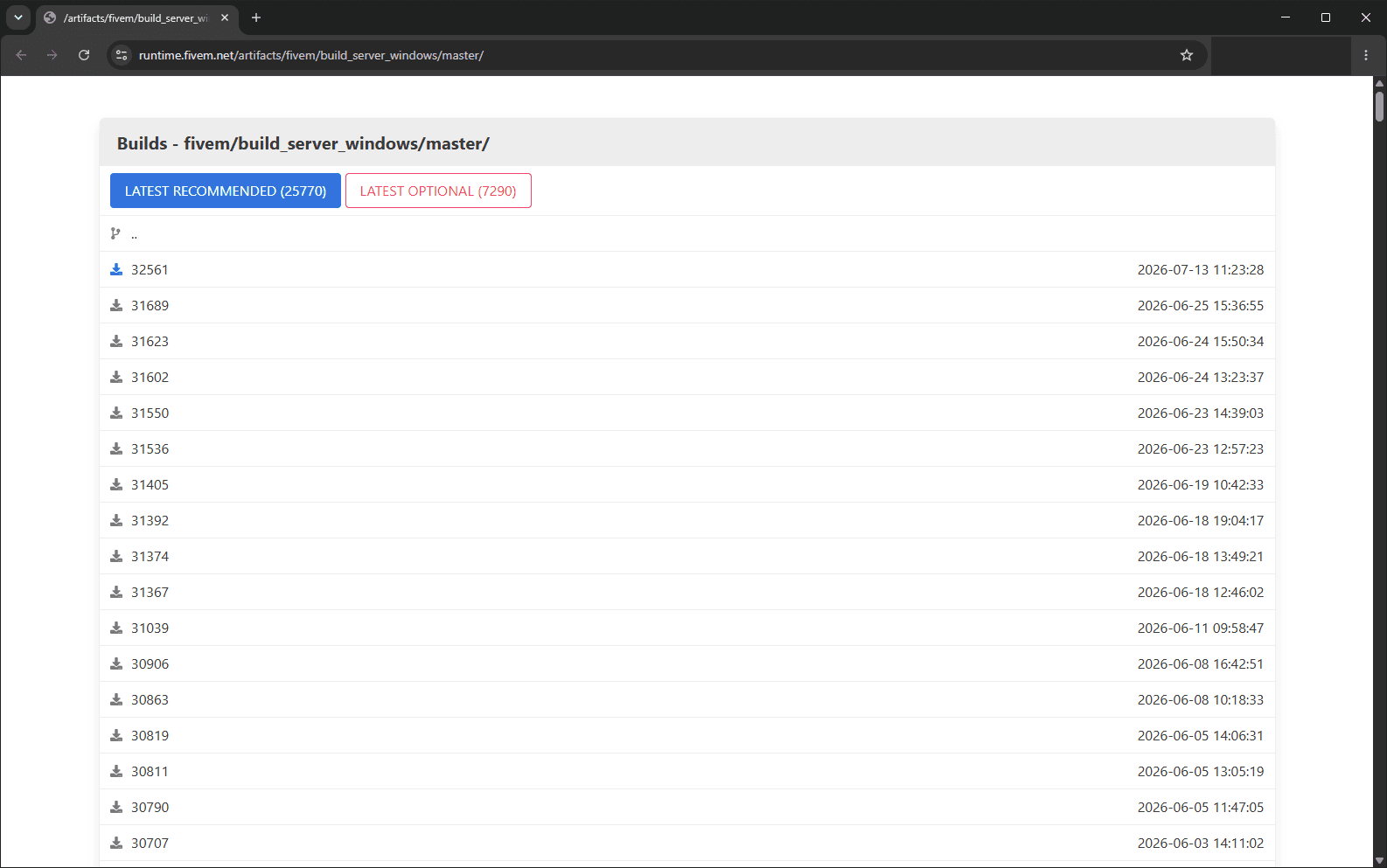
If you look at the official artifacts page, you'll see the problem - it's just a wall of build numbers and dates. It tells you nothing about which builds have issues, and the "latest recommended" flag is updated very rarely (at the time of writing it points at a build that's months old, while dozens of newer builds have shipped).
This is exactly why we built the FiveM Artifacts DB - a free, open source tool that tracks community-reported issues against artifact versions, and always surfaces the latest artifact with no reported issues:
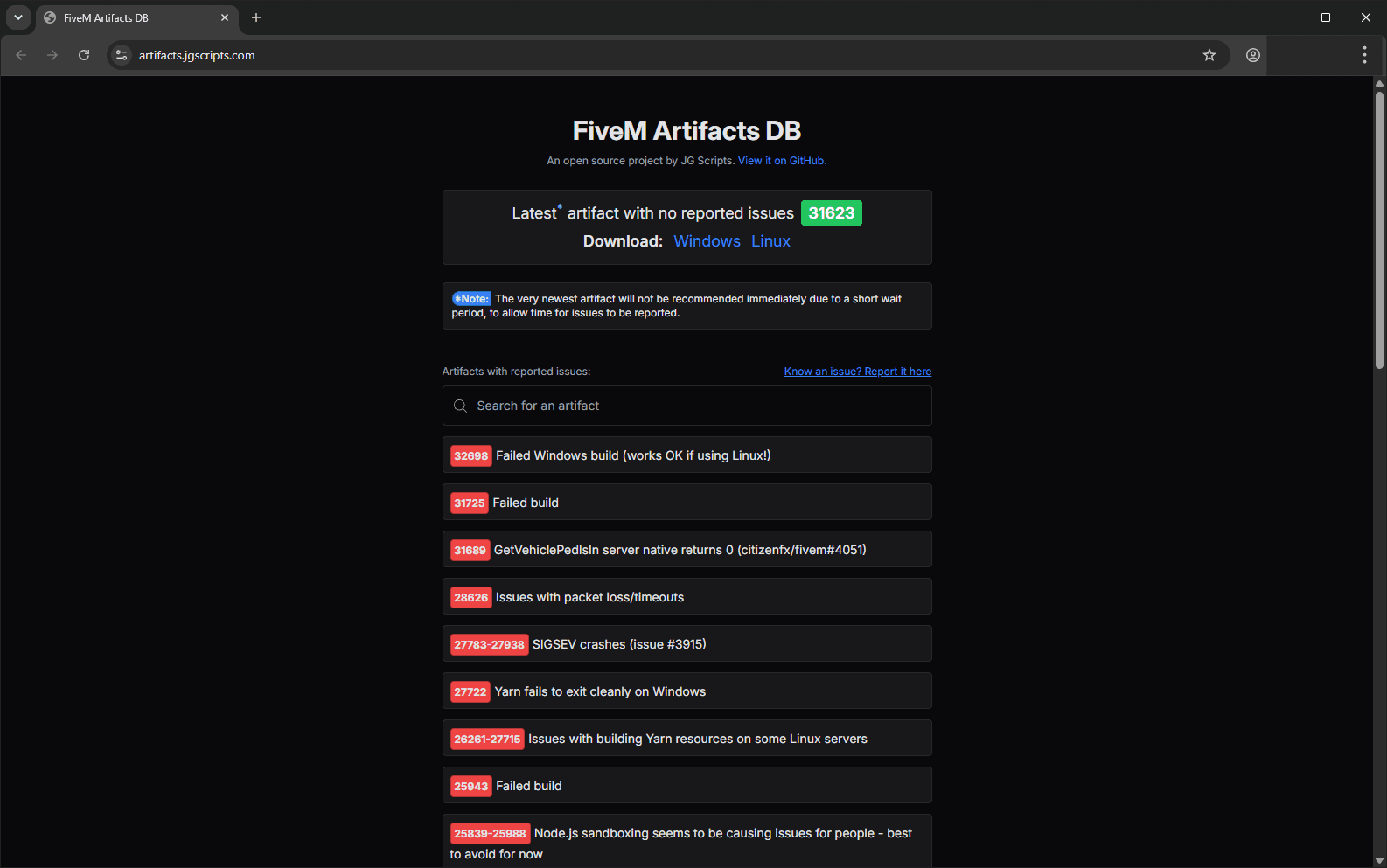
A couple of things worth knowing about how it works:
- The very newest artifact is deliberately not recommended straight away. There's a short wait period first, to allow time for any issues to be reported.
- Below the recommended build, you'll find a searchable list of known-problematic builds and ranges - useful if you're already running one of them and wondering why things are broken.
- The download buttons are direct links to the official Cfx.re artifacts server (runtime.fivem.net) - the DB never re-hosts or modifies any files.
If you ever run into an issue on a specific artifact, you can report it from the site too, which helps every other server owner avoid it.
Step 1: Download the new artifact
Head to artifacts.jgscripts.com and click Windows next to the recommended build. You'll get a file called server.zip.
Once it's downloaded, move it into your server folder (the folder that contains your current artifacts). A typical txAdmin-based Windows server looks like this:
📂 C:\FXServer
   ├── 📂 artifacts   <- the server binaries (this is what we're updating)
   ├── 📂 txData      <- txAdmin config, settings & server data
   └── server.zip     <- the new artifact we just downloaded

Your folder names may differ slightly, but the structure is almost always the same: the folder containing FXServer.exe is your artifacts folder, and txData lives next to it. Never delete or replace txData - it holds your txAdmin configuration, admins, settings and (by default) your server data, and it is completely unaffected by artifact updates.
If your server runs with a game hosting panel rather than a VPS/dedicated machine or your home PC, your host likely has its own artifact/version selector - check their docs instead.
Step 2: Stop your server
Stop the server from txAdmin (or just close the FXServer console window). Windows won't let you replace the binaries while they're running.
Step 3: Extract the new artifact
Right-click server.zip and choose Extract All..., and extract it to a new folder next to your existing artifacts - Windows will suggest a folder named server by default, which is perfect. Once it's done, your server folder will look like this:
📂 C:\FXServer
   ├── 📂 artifacts   <- old build
   ├── 📂 server      <- new build, freshly extracted
   ├── 📂 txData
   └── server.zip
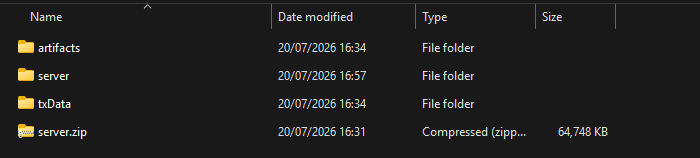
Quick sanity check: open the new server folder and make sure FXServer.exe is directly inside it (not nested inside another subfolder).
Step 4: Swap the folders
Rather than deleting anything, we'll do a rename swap - it's instant, and it gives you a free rollback path:
- Rename artifacts to artifacts-backup
- Rename server to artifacts
📂 C:\FXServer
   ├── 📂 artifacts          <- new build, now live
   ├── 📂 artifacts-backup   <- old build, kept just in case
   ├── 📂 txData             <- untouched
   └── server.zip
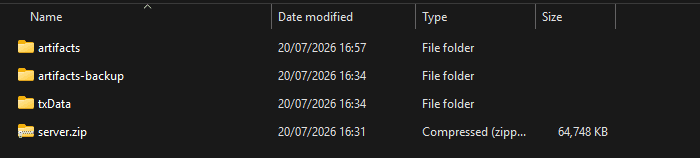
Because txData was never touched, txAdmin will pick up your existing configuration exactly as it was - all that's changed is the binaries.
Step 5: Start the server & verify
Start your server again. In the console, the txAdmin startup line shows you both the txAdmin version and the artifact build you're now running - here we can see b31623, matching the build we downloaded:
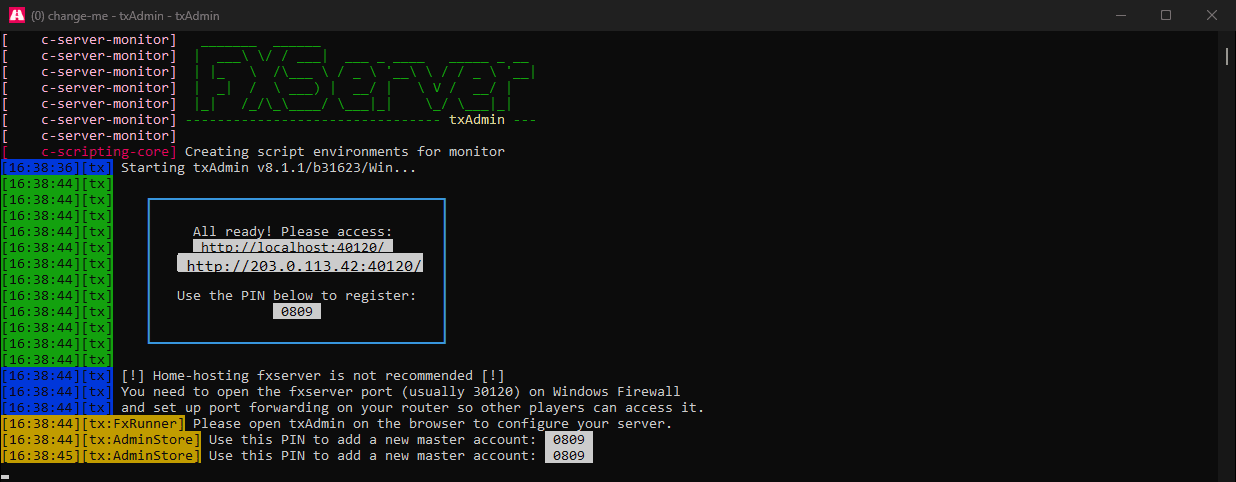
Connect, restart a few resources, and have a normal play session. If everything behaves, you're done - after a few days you can safely delete artifacts-backup and server.zip.
If something goes wrong
This is where the rename swap pays off. Stop the server, rename artifacts back to server (or just delete it), rename artifacts-backup back to artifacts, and start the server again - you're back on the old build in under a minute.
And if you do hit a genuine artifact bug, please report it on the Artifacts DB - it takes 30 seconds, and it'll save other server owners from the same headache.
How often should you update?
You don't need to chase every build - a new artifact is published most days. As a rule of thumb:
- Update when a new GTA V game build drops (clients on the newest game build need a recent artifact).
- Update when a fix you care about ships, or txAdmin releases a version you want.
- Otherwise, checking in every few weeks is plenty - just take whatever the Artifacts DB recommends at the time.
Running Linux? The process is conceptually identical - the Artifacts DB has a Linux download (fx.tar.xz) for every recommended build too.